After running an initial analysis of your code with default setup, you can make changes to your configuration to better meet your needs. You can customize your configuration in the user interface, or using repository properties to add custom queries or apply a custom configuration file. See About setup types for code scanning and Repository properties for code scanning.
Customizing your existing configuration of default setup
-
On GitHub, navigate to the main page of the repository.
-
Under your repository name, click Settings. If you cannot see the "Settings" tab, select the dropdown menu, then click Settings.

-
In the "Security" section of the sidebar, click Advanced Security.
-
In the "CodeQL analysis" row of the "Code Security" section, select , then click View CodeQL configuration.
-
In the "CodeQL default configuration" window, click Edit.
-
Optionally, in the "Languages" section, select or deselect languages for analysis.
-
Optionally, in the "Query suite" row of the "Scan settings" section, select a different query suite to run against your code.
-
Optionally, to use labeled runners, in the "Runner type" section of the "CodeQL default configuration" modal dialog, select Standard GitHub runner to open a dropdown menu, then select Labeled runner. Then, next to "Runner label," enter the label of an existing self-hosted or GitHub-hosted runner. For more information, see Configuring default setup for code scanning.
-
(Public preview) Optionally, in the "Threat model" row of the "Scan settings" section, select Remote and local sources. This option is only available for repositories with code in a supported language: Java/Kotlin and C#.
-
To update your configuration, as well as run an initial analysis of your code with the new configuration, click Save changes. All future analyses will use your new configuration.

Defining the alert severities that cause a check failure for a pull request
You can use rulesets to prevent pull requests from being merged when one of the following conditions is met:
- A required tool finds a code scanning alert of a severity that is defined in the ruleset.
- A required tool's analysis is still in progress.
- A required tool is not configured for the repository.
For more information, see Set code scanning merge protection. For more general information about rulesets, see About rulesets.
Including local sources of tainted data in default setup
Note
Threat models are currently in public preview and subject to change. During the public preview, threat models are supported only by analysis for Java/Kotlin and C#.
If your codebase only considers remote network requests to be potential sources of tainted data, then we recommend using the default threat model. If your codebase considers sources other than network requests to potentially contain tainted data, then you can use threat models to add these additional sources to your CodeQL analysis. During the public preview, you can add local sources (for example: command-line arguments, environment variables, file systems, and databases) that your codebase may consider to be additional sources of tainted data.
You can edit the threat model used in a default setup configuration. For more information, see Customizing your existing configuration of default setup.
Extending CodeQL coverage with CodeQL model packs in default setup
Note
CodeQL model packs are currently in public preview and subject to change. Model packs are supported for C/C++, C#, Java/Kotlin, Python, Ruby, and Rust analysis.
The CodeQL model editor in the CodeQL extension for Visual Studio Code supports modeling dependencies for C#, Java/Kotlin, Python, and Ruby.
If your enterprise is hosted on GitHub.com and you use frameworks and libraries that are not recognized by the standard libraries included with CodeQL, you can model your dependencies and extend code scanning analysis. For more information, see Supported languages and frameworks in the documentation for CodeQL.
For default setup, you need to define the models of your additional dependencies in CodeQL model packs. You can extend coverage in default setup with CodeQL model packs for individual repositories, or at scale for all repositories in an organization.
For more information about CodeQL model packs and writing your own, see Using the CodeQL model editor.
Extending coverage for a repository
- In the
.github/codeql/extensionsdirectory of the repository, copy the model pack directory which should include acodeql-pack.ymlfile and any.ymlfiles containing additional models for the libraries or frameworks you wish to include in your analysis. - The model packs will be automatically detected and used in your code scanning analysis.
- If you later change your configuration to use advanced setup, any model packs in the
.github/codeql/extensionsdirectory will still be recognized and used.
Extending coverage for all repositories in an organization
Note
If you extend coverage with CodeQL model packs for all repositories in an organization, the model packs that you specify must be published to the GitHub Container registry and be accessible to the repositories that run code scanning. For more information, see Working with the Container registry.
-
In the upper-right corner of GitHub, click your profile picture, then click Organizations.
-
Under your organization name, click Settings. If you cannot see the "Settings" tab, select the dropdown menu, then click Settings.

-
In the "Security" section of the sidebar, click Advanced Security then Global settings.
-
Find the "Code scanning" section.
-
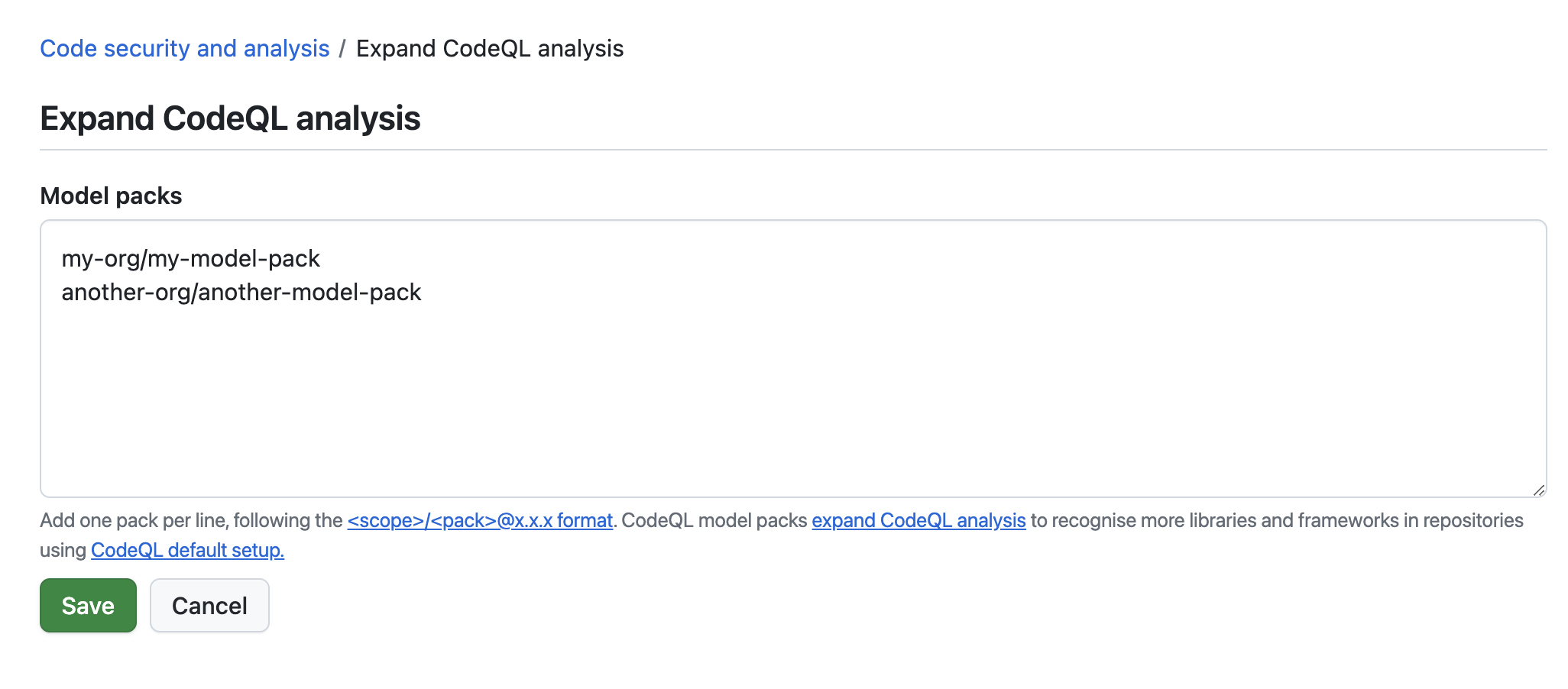
Next to "Expand CodeQL analysis," click Configure.
-
Enter references to the published model packs you want to use, one per line, then click Save.
-
The model packs will be automatically detected and used when code scanning runs on any repository in the organization with default setup enabled.


Customizing default setup with a configuration file
You can further customize default setup by applying a CodeQL configuration file, using the github-codeql-config-file repository property. The configuration in the file is merged with the configuration default setup generates automatically, so you can, for example, add extra queries or exclude paths without needing to switch to advanced setup. For more information about what you can configure in a CodeQL configuration file, and how it's merged with default setup, see Repository properties for code scanning.
Applying a configuration file to all repositories in an organization
The recommended way to customize default setup at scale is to set an organization-wide default value for the github-codeql-config-file repository property, so that you don't need to update individual repositories as you add more of them to your organization.
-
Create a CodeQL configuration file in a central repository. You can either create a new repository for this purpose or add the file to an existing one. Your organization-wide configuration can then be maintained in one place. For information about the format of the configuration files, see Workflow configuration options for code scanning.
If the configuration file is stored in a private repository other than the one being analyzed, you also need to set up a Git Source private registry configuration so that default setup can access it from other repositories. See Giving security features access to private registries.
-
Create a
github-codeql-config-filerepository property for your organization and set its default value to the path of the configuration file. For example, if you have committed your configuration file ascodeql.ymlto themainbranch ofocto-org/config, you would set the value of the repository property toremote=octo-org/config@main:codeql.yml.We recommend testing the configuration file on a single repository before setting the organization-wide default. See Repository properties for code scanning.
-
The configuration file will be automatically detected and merged with the configuration default setup generates the next time code scanning runs on each repository in the organization. Repositories that already have an explicit value set for the
github-codeql-config-fileproperty continue to use that value instead of the organization-wide default. For more information about how default and explicit repository property values interact, see Managing custom properties for repositories in your organization.
Applying a configuration file to a repository
If you only need to customize default setup for a single repository, or to test a configuration before rolling it out to your organization, you can set the property directly on that repository instead.
-
Create a CodeQL configuration file. This can be a file within the repository being analyzed, or a file in a separate repository. For information about the format of the configuration files, see Workflow configuration options for code scanning.
If the configuration file is stored in a private repository other than the one being analyzed, you also need to set up a Git Source private registry configuration so that default setup can access it from other repositories. See Giving security features access to private registries.
-
Set the
github-codeql-config-filerepository property for the repository to the local or remote path of the configuration file. See Repository properties for code scanning for more information about acceptable values for this property, and Managing custom properties for repositories in your organization for how to set a repository property value. -
The configuration file will be automatically detected and merged with the configuration default setup generates the next time code scanning runs on the repository.
Continuing scans on inactive repositories
By default, code scanning default setup pauses weekly scheduled scans on repositories that have had no commits pushed or pull requests opened for 180 days. You can override this behavior in an organization, though the scan period is not configurable.
-
In the upper-right corner of GitHub, click your profile picture, then click Organizations.
-
Under your organization name, click Settings. If you cannot see the "Settings" tab, select the dropdown menu, then click Settings.
-
In the "Security" section of the sidebar, click Advanced Security then Global settings.
-
In the "Code scanning" section, enable the Keep scheduled scans running every 30 days for inactive repositories setting.
Further customization
If you need to change any other aspects of your code scanning configuration, consider configuring advanced setup. See Configuring advanced setup for code scanning.