About labels
You can manage your work on GitHub by creating labels to categorize issues and pull requests. You can apply labels in the repository the label was created in. Once a label exists, you can use the label on any issue or pull request within that repository. Addition, modification, or deletion of labels in one repository has no effect on labels belonging to other repositories.
About default labels
GitHub provides default labels in every new repository. You can use these default labels to help create a standard workflow in a repository.
| Label | Description |
|---|---|
bug | Indicates an unexpected problem or unintended behavior |
documentation | Indicates a need for improvements or additions to documentation |
duplicate | Indicates similar issues or pull requests |
enhancement | Indicates new feature requests |
good first issue | Indicates a good issue for first-time contributors |
help wanted | Indicates that a maintainer wants help on an issue or pull request |
invalid | Indicates that an issue or pull request is no longer relevant |
question | Indicates that an issue or pull request needs more information |
wontfix | Indicates that work won't continue on an issue or pull request |
Default labels are included in every new repository when the repository is created, but you can edit or delete the labels later.
Issues with the good first issue label are used to populate the repository's contribute page. For an example of a contribute page, see github/docs/contribute.
Organization owners can customize the default labels for repositories in their organization. For more information, see Managing default labels for repositories in your organization.
Creating a label
Anyone with write access to a repository can create a label.
-
On GitHub, navigate to the main page of the repository.
-
Under your repository name, click Issues or Pull requests.

-
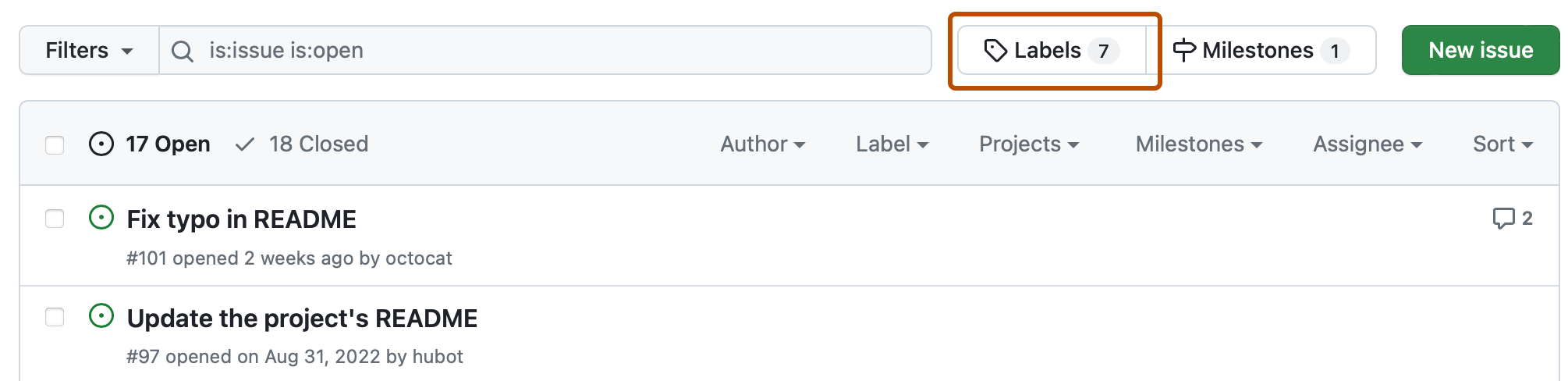
Above the list of issues or pull requests, click Labels.
-
To the right of the search field, click New label.
-
Under "Label name", type a name for your label.
-
Under "Description", type a description to help others understand and use your label.
-
Optionally, to customize the color of your label, edit the hexadecimal number, or, for another random selection, click .
-
To save the new label, click Create label.


Applying a label
Anyone with triage access to a repository can apply and dismiss labels.
- Navigate to the issue or pull request.
- In the right sidebar, click Labels, then click a label.
Editing a label
Anyone with write access to a repository can edit existing labels.
-
On GitHub, navigate to the main page of the repository.
-
Under your repository name, click Issues or Pull requests.
-
Above the list of issues or pull requests, click Labels.
-
In the labels list, to the right of the label you want to edit, click Edit.
-
Under "Label name", type a name for your label.
-
Under "Description", type a description to help others understand and use your label.
-
Optionally, to customize the color of your label, edit the hexadecimal number, or, for another random selection, click .
-
Click Save changes.
Deleting a label
Anyone with write access to a repository can delete existing labels.
Deleting a label will remove the label from issues and pull requests.
-
On GitHub, navigate to the main page of the repository.
-
Under your repository name, click Issues or Pull requests.
-
Above the list of issues or pull requests, click Labels.
-
In the labels list, to the right of the label you want to delete, click Delete.