You can choose which model Copilot uses for each GitHub Desktop feature, such as commit message generation and conflict resolution.
You can also configure Copilot no GitHub Desktop to use your own LLM provider (BYOK) instead of GitHub-hosted models. This lets you connect to OpenAI-compatible endpoints, Azure OpenAI, or Anthropic, including locally running models such as Ollama.
Prerequisites
- You must be signed in to a GitHub account with access to Copilot no GitHub Desktop.
- If your access is managed by an organization or enterprise, Copilot no GitHub Desktop must be enabled for your account.
- You have an API key or bearer token from a supported LLM provider, or you have a local model running, such as Ollama.
- You have the base URL and at least one model identifier for the provider you want to use.
Observação
Custom LLM providers in GitHub Desktop require access to Copilot no GitHub Desktop. To use your own LLM models with CLI do Copilot, see Usando seus próprios modelos LLM na CLI do GitHub Copilot.
Supported provider types
GitHub Desktop supports three custom provider types:
| Provider type | Compatible services |
|---|---|
| OpenAI / OpenAI-compatible | OpenAI, Ollama, vLLM, Foundry Local, and any other endpoint that is compatible with the selected API format. |
| Azure | Azure OpenAI Service. |
| Anthropic | Anthropic Claude models. |
Configuring your provider
You configure your model provider by adding a custom provider in GitHub Desktop settings.
-
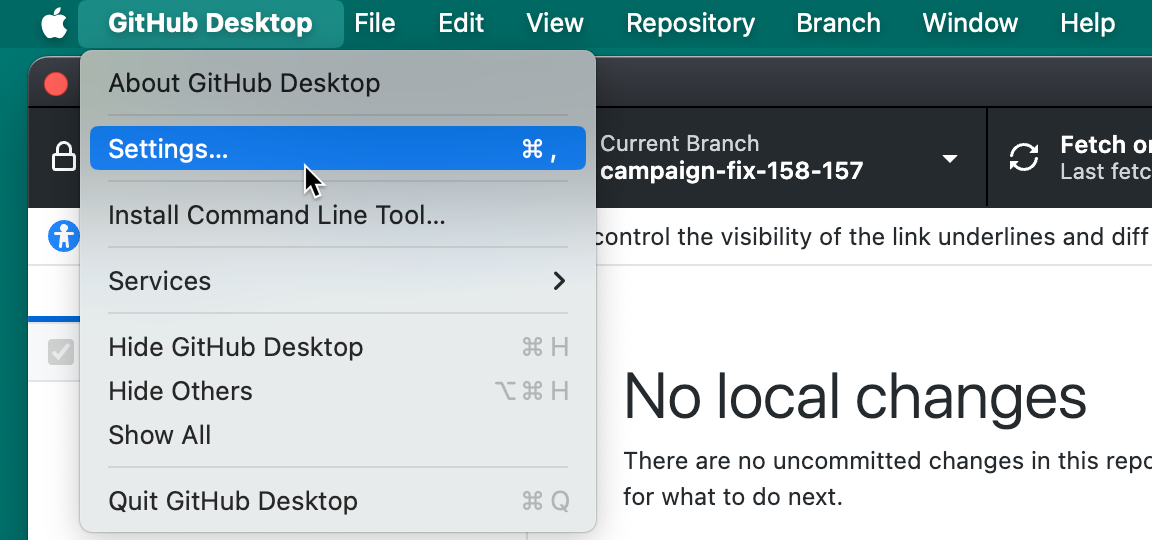
Na barra de menus, selecione GitHub Desktop e selecione Configurações.
-
In the left sidebar, click Copilot.
-
Click the Providers tab.
-
Click Add Provider.
-
Under Name, type a name for the LLM provider.
-
Under Type, select the provider type.
-
Under Base URL, type the base URL of your model provider's API endpoint.
The base URL must be an HTTPS URL, or an HTTP URL that points to the local machine.
-
If you selected OpenAI / OpenAI-compatible, under API Format, select the API format your provider expects.
- Select Chat completions (default) for providers that use the OpenAI Chat Completions API.
- Select Responses (GPT-5 series) for providers that use the OpenAI Responses API.
-
If you selected Azure, under Azure API Version, type the API version for your deployment.
-
Optionally, under Request Timeout (seconds), type the number of seconds GitHub Desktop waits for the provider to respond.
-
Under Authentication, select the authentication method.
- Select API key to authenticate with an API key.
- Select Bearer token to authenticate with a bearer token.
- Select None only for endpoints that do not require credentials.
-
If you selected API key or Bearer token, type the required credential.
-
Add at least one model to the provider. For more information, see Adding models to your provider.
-
Click Add.

-
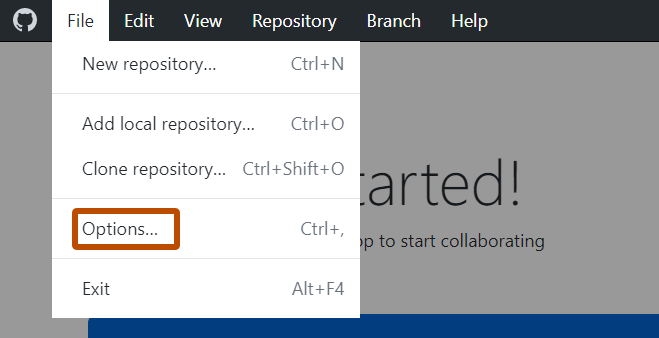
Use o menu Arquivo e clique em Opções.
-
In the left sidebar, click Copilot.
-
Click the Providers tab.
-
Click Add Provider.
-
Under Name, type a name for the LLM provider.
-
Under Type, select the provider type.
-
Under Base URL, type the base URL of your model provider's API endpoint.
The base URL must be an HTTPS URL, or an HTTP URL that points to the local machine.
-
If you selected OpenAI / OpenAI-compatible, under API Format, select the API format your provider expects.
- Select Chat completions (default) for providers that use the OpenAI Chat Completions API.
- Select Responses (GPT-5 series) for providers that use the OpenAI Responses API.
-
If you selected Azure, under Azure API Version, type the API version for your deployment.
-
Optionally, under Request Timeout (seconds), type the number of seconds GitHub Desktop waits for the provider to respond.
-
Under Authentication, select the authentication method.
- Select API key to authenticate with an API key.
- Select Bearer token to authenticate with a bearer token.
- Select None only for endpoints that do not require credentials.
-
If you selected API key or Bearer token, type the required credential.
-
Add at least one model to the provider. For more information, see Adding models to your provider.
-
Click Add.

Adding models to your provider
Add the models you want to use from your provider. Each model you add appears in the model picker alongside GitHub-hosted models.
-
In the Add Custom Provider or Edit Custom Provider dialog, under Models, click Add Model.
-
Under Display Name, type the friendly name shown in the Copilot model picker.
-
Under Model Identifier, type the exact model name your provider expects.
-
Under Reasoning Effort, select the reasoning level for the model.
For non-reasoning models, or to let the provider choose, leave Default (provider's choice) selected.
-
Click Add.
Reviewing provider responsibilities
When you use your own LLM provider, GitHub Desktop sends prompts and repository context to that provider instead of GitHub. Check your provider's data handling and retention policies before adding credentials.
Always review generated commit messages and conflict-resolution suggestions before committing. For more information, see Uso responsável de recursos de GitHub Copilot.