Introduction
您可以在 Copilot云代理 的多个位置发起 GitHub 会话。 会话运行后,可以监视其进度,使用后续提示对其进行引导,并循环访问生成的拉取请求,而无需离开浏览器。
有关 Copilot云代理 的详细信息,请参阅 关于 GitHub Copilot 云代理。
还可以使用 代理应用 通过这些相同的入口点启动合作伙伴构建的代理。 有关详细信息,请参阅“使用代理应用”。
从“代理”选项卡或面板启动会话
可以从“代理”选项卡和“代理”面板启动会话。 唯一的区别是入口点-一旦看到“新建代理任务”窗体,步骤是相同的。
-
打开代理面板或选项卡:
- 在存储库中打开 Agents 选项卡。
- 导航到智能体页面****:转到 github.com/copilot/agents。 你也可以通过打开智能体面板,然后单击“View all”进入此页面****。
- 打开智能体面板****:单击 GitHub 右上角导航栏中的 。
-
使用提示字段中的下拉菜单,选择要使用的存储库 Copilot 。
-
键入描述请求的提示。 还可以通过粘贴、拖动或上传图像来添加视觉输入,例如屏幕截图或 UI 模型。 支持的文件:image/png、image/jpeg、image/gif、image/webp。
例如:
Implement a user friendly message for common errors.如果要 Copilot 打开拉取请求,可以在提示中提问,例如
Open a pull request to implement a user friendly message for common errors. -
(可选)为 Copilot 的变更选择基分支。 Copilot 将基于此分支创建新分支。
-
(可选)如果您想分配一个代理或一个具有专用行为和工具的,可以单击自定义智能体以打开代理下拉菜单。 可以从存储库、组织或企业中选择现有 自定义智能体。 还可以单击“创建代理”,在所选存储库和分支中创建新的代理资料代理。 有关详细信息,请参阅“为Copilot云代理创建自定义代理”。
注意
Third-party coding agents are available for all paid Copilot plans.
-
(可选)可以使用下拉菜单来选择将使用的 Copilot 模型。 有关详细信息,请参阅“更改 GitHub Copilot 云代理的 AI 模型”。
-
单击 或按 Enter。
Copilot 将启动一个新会话,该会话将显示在提示框下面的列表中。 Copilot 将处理任务并推送任何代码更改。
在会话日志中,只需单击一次即可追踪 Copilot的工作并打开拉取请求。 有关详细信息,请参阅“[AUTOTITLE](/copilot/how-tos/copilot-on-github/use-copilot-agents/manage-and-track-agents)”。
从仪表板启动会话
你可以要求 Copilot 从仪表板中的提示框开始工作。 仪表板是你在登录时访问 GitHub 时看到的 https://github.com 上活动的个性化概述。
-
导航到 https://github.com 的仪表板。
-
** 单击“任务**”按钮。
-
使用提示字段中的下拉菜单,选择要使用的存储库 Copilot 。
-
键入描述请求的提示。
例如:
Implement a user friendly message for common errors.如果要 Copilot 打开拉取请求,可以在提示中提问,例如
Open a pull request to implement a user friendly message for common errors. -
可选地为 Copilot 的拉取请求选择一个基分支。 Copilot 将基于此分支创建新分支。
-
(可选)如果您想分配一个代理或一个具有专用行为和工具的,可以单击自定义智能体以打开代理下拉菜单。 可以从存储库、组织或企业中选择现有 自定义智能体。 还可以单击“创建代理”,在所选存储库和分支中创建新的代理资料代理。 有关详细信息,请参阅“为Copilot云代理创建自定义代理”。
注意
Third-party coding agents are available for all paid Copilot plans.
-
单击“立即发送” 或按“返回”。
你将被带到“代理”选项卡,并 Copilot 启动一个新会话,该会话将显示在提示框下方的“最近会话”列表中。 Copilot 将处理任务并推送任何代码更改。
注意
如果已启用功能预览版 中的“新建仪表板体验 ”,新会话将显示在仪表板的提示框下的“代理会话” 中。 有关详细信息,请参阅“个人仪表板”。
从副驾驶聊天开始
当你从 副驾驶聊天
启动任务时,新的 Copilot云代理 会话会纳入当前聊天对话的上下文。 这意味着,你无需在你的 Copilot 提示中重复说明已经向 /task 提供过的细节。
-
在 GitHub Copilot 聊天功能 上打开 GitHub.com。
-
键入
/task以请求 Copilot 创建拉取请求,并提供有关要 Copilot 更改的内容的详细信息。例如:
/task Create a pull request to put backticks around file names and variables in output. -
可选地为 Copilot 的拉取请求选择一个基分支。 Copilot 将基于此分支创建新分支,然后将更改推送到面向该分支的拉取请求。
-
(可选)如果您想分配一个代理或一个具有专用行为和工具的,可以单击自定义智能体以打开代理下拉菜单。 可以从存储库、组织或企业中选择现有 自定义智能体。 还可以单击“创建代理”,在所选存储库和分支中创建新的代理资料代理。 有关详细信息,请参阅“为Copilot云代理创建自定义代理”。
注意
Third-party coding agents are available for all paid Copilot plans.
-
单击 或按 Enter。
Copilot 将启动一个新会话,该会话将显示在提示框下面的列表中。 Copilot 将处理任务并将更改推送到其拉取请求中,任务完成后,它会将你添加为审阅者,并触发通知。
将问题分配给 Copilot
可以请求 Copilot 将问题分配给 Copilot 来开始处理问题。 Copilot 将开始处理任务,发起拉取请求,然后在完成时请求您进行评审。
注意
此功能目前处于公开预览,可能会发生更改。
-
在 GitHub 上,导航到存储库的主页面。
-
在仓库名称下,单击 “Issues”****。

-
打开要分配给 Copilot 的问题。
-
在右侧菜单中,单击“代理人”****。
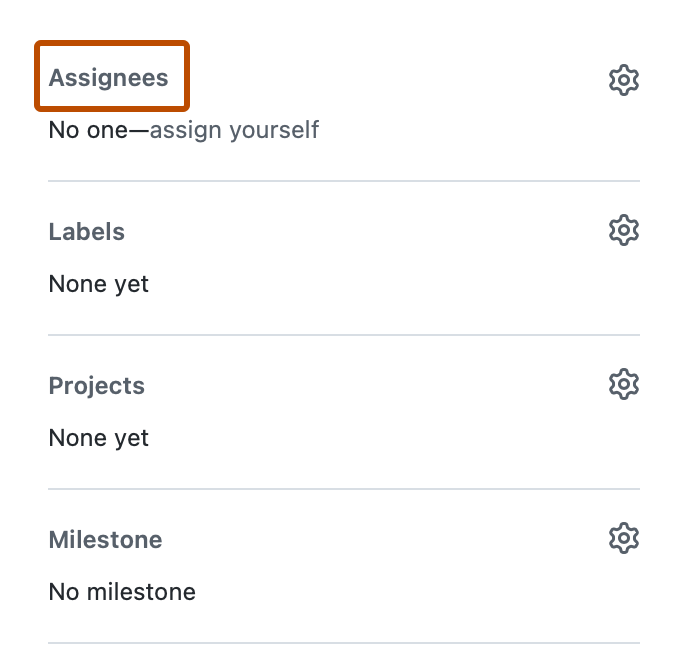
-
从被分配者列表中单击Copilot。
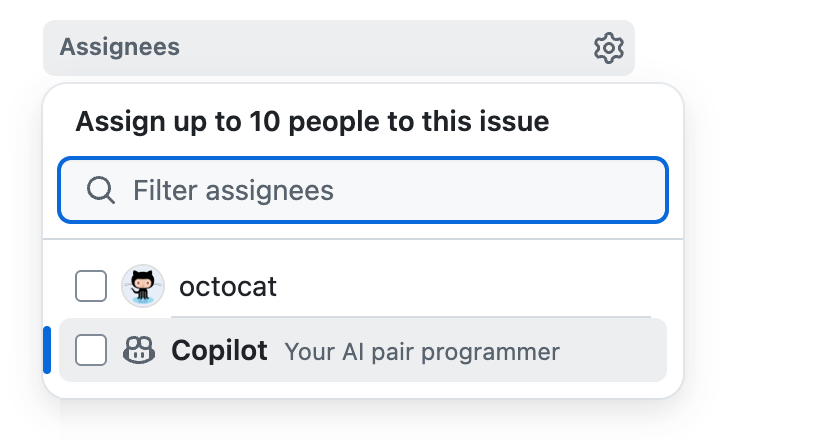
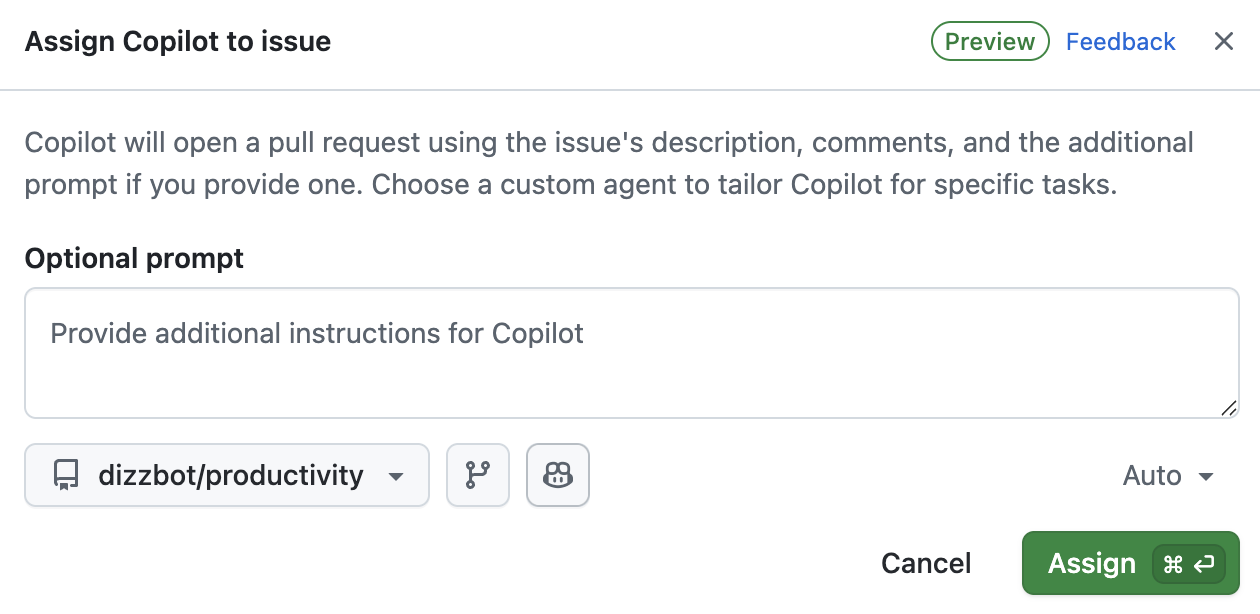
此时,将显示其他选项。
-
在 “可选提示 ”字段中,可以添加特定 Copilot指南。 添加有助于理解和完成任务的任何上下文、约束或特定要求 Copilot 。
例如,可以包含有关要使用的特定编码模式或框架、测试要求、代码样式偏好设置、应修改或不应修改的文件或目录的说明。
除了在此处提供的详细信息之外, Copilot 还将使用为目标存储库配置的任何自定义说明。 请参阅“为GitHub Copilot添加存储库自定义说明”。
-
可以使用对话框中的下拉菜单更改 Copilot 将要工作的存储库,以及它将从中派生的分支。
所有您拥有至少读取权限的存储库都会显示在存储库下拉菜单中。 但是,只有在您对该存储库具有写入访问权限并且Copilot云代理已为该存储库启用时,您才能选择该存储库。
如果在与问题源组织不同的组织中选择存储库,或者在问题位于专用存储库中时选择公共存储库,则会显示警告。
如果未指定存储库, Copilot 则会在与问题相同的存储库中工作。 如果未指定分支, Copilot 则从所选存储库的默认分支工作。
提示
当将问题分配给 Copilot 时,它会收到问题标题、描述、当前存在的任何注释以及你提供的任何其他说明。 分配问题后, Copilot 将不知道,因此不会对添加到问题的任何进一步注释做出反应。 如果您掌握了更多信息,或对原始要求进行了更改,请将这些内容作为注释添加到 Copilot 提出的拉取请求中。
-
(可选)如果您想分配一个代理或一个具有专用行为和工具的,可以单击自定义智能体以打开代理下拉菜单。 可以从存储库、组织或企业中选择现有 自定义智能体。 还可以单击“创建代理”,在所选存储库和分支中创建新的代理资料代理。 有关详细信息,请参阅“为Copilot云代理创建自定义代理”。
注意
Third-party coding agents are available for all paid Copilot plans.
-
(可选)可以使用下拉菜单来选择将使用的 Copilot 模型。 有关详细信息,请参阅“更改 GitHub Copilot 云代理的 AI 模型”。


还可以从Copilot上的其他位置将问题分配给GitHub.com。
- 从存储库的**问题**页上的问题列表中。
- 查看问题 GitHub项目时。
为新存储库设定种子
创建新存储库时,可以通过输入提示来请求 Copilot 为新存储库设定种子。
-
在任何页面的右上角,选择 ,然后单击“新建存储库”。
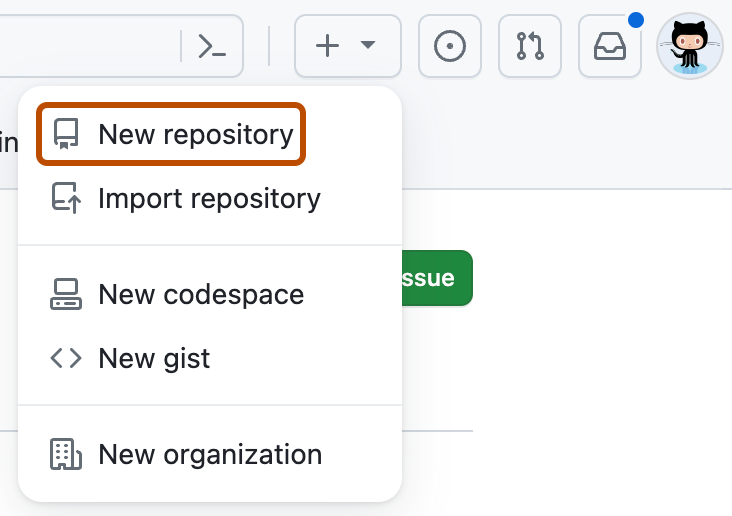
-
使用“所有者”下拉菜单选择你想要拥有存储库的帐户。

-
在 “提示” 字段中,输入描述您希望 Copilot 构建的内容的提示。
例如,
Create a Rust CLI for converting CSV spreadsheets to Markdown1. 单击“创建存储库”。


Copilot 将立即打开草稿拉取请求。 Copilot 将处理任务并将更改推送到其拉取请求中,任务完成后,它会将你添加为审阅者,并触发通知。
修复失败的 GitHub Actions 工作流运行
当 GitHub Actions 工作流在拉取请求分支上运行失败时,可以请求 Copilot 调查并修复失败。
-
打开 GitHub,导航到失败的工作流运行作业页。
-
** 单击“修复”按钮Copilot**。
Copilot 将启动一个新会话,调查失败的原因,并将修补程序推送到分支。
继续处理拉取请求
可以在任何拉取请求的评论中提及 @copilot ,要求 Copilot 进行更改。 此功能适用于由 Copilot 创建的拉取请求,以及由你或其他人创建的拉取请求。
默认情况下,Copilot 将提交直接推送到拉取请求分支。 若要改为创建单独的拉取请求,请在批注中描述该请求。 还可以检出分支并自己推送更改。
批量审阅批注,而不是单独提交批注。 通过 GitHub Web 界面提交拉取请求评论(而非审阅或审阅评论)时,使用模型选择器选择一个模型。 Copilot 默认情况下,使用原始拉取请求中的模型。
Copilot 仅响应对存储库具有写入权限的人的评论。
当 Copilot 启动新会话以响应你的批注时,批注上会显示一个眼睛表情符号(👀)。 拉取请求时间线中会显示“Copilot已开始工作”事件。

Copilot 记住以前针对同一拉取请求的会话的上下文,因此后续请求更快、更可靠。 如果拉取请求是由自定义智能体创建的,那么提到@copilot将继续使用相同的代理。
解决合并冲突
可以通过两种方式请求 Copilot 解决拉取请求中的合并冲突:
- 使用“修复 Copilot”按钮:如果拉取请求有合并冲突,请单击合并框中出现的“修复Copilot”按钮。
- 使用 @copilot 提及:在拉取请求的评论中提及
@copilot并要求其解决冲突;例如,“@copilot 解决此 PR 上的合并冲突”。
Copilot 会分析冲突的更改,解决它们,并验证构建、测试和代码检查仍然通过。 然后,它会请求你的评审,以便你可以在合并之前确认解决方案。
使用Copilot云代理自动运行automations
您可以设置 automations ,使其按计划自动运行 Copilot云代理,或在问题被打开等事件发生时自动运行。 在存储库的 automations 选项卡中,可通过 Automations 窗格创建和管理 ****。 有关详细信息,请参阅“使用 Copilot 云代理创建自动化”。
管理 GitHub Actions 工作流运行
默认情况下,当 GitHub Actions 向拉取请求推送更改时,Copilot 工作流不会自动运行。
GitHub Actions 工作流可以具有特权,并且有权访问敏感机密。 检查拉取请求中的拟议更改,确保您在拉取请求分支上自由运行您的工作流程。 应特别注意 .github/workflows/ 目录中影响工作流文件的任何拟议更改。
若要允许 GitHub Actions 工作流运行,请单击拉取请求合并框中的 “批准并运行工作流 ”按钮。

(可选)你可以配置为 Copilot云代理 允许 GitHub Actions 工作流在没有人工干预的情况下运行。 有关详细信息,请参阅 配置 GitHub Copilot 云代理的设置。
对 Copilot 的工作提供反馈
使用Copilot的拉取请求和评论上的反馈按钮对输出进行评分。 你的反馈有助于提高 Copilot质量。
- 在 Copilot 的拉取请求或评论上,单击点赞 (👍) 或点踩 (👎) 按钮。
- 如果单击拇指向下按钮,可以选择原因并留下批注,然后单击 “提交反馈”。