Teams can be visible or secret:
- Visible teams can be viewed and @mentioned by every organization member.
- Secret teams are only visible to the people on the team and organization owners. They're great for hiding the members of teams that work with external partners or clients. However, if a team member or organization owner mentions a secret team, the team name is visible in the mention text. Secret teams cannot be nested under parent teams or have child teams.
People who are not members of the organization cannot view any teams.
Tip
If a team has child or parent teams, you cannot make it a secret team.
-
In the upper-right corner of GitHub, click your profile picture, then click Organizations.
-
Click the name of your organization.
-
Under your organization name, click Teams.

-
Select the team or teams whose visibility you'd like to change.
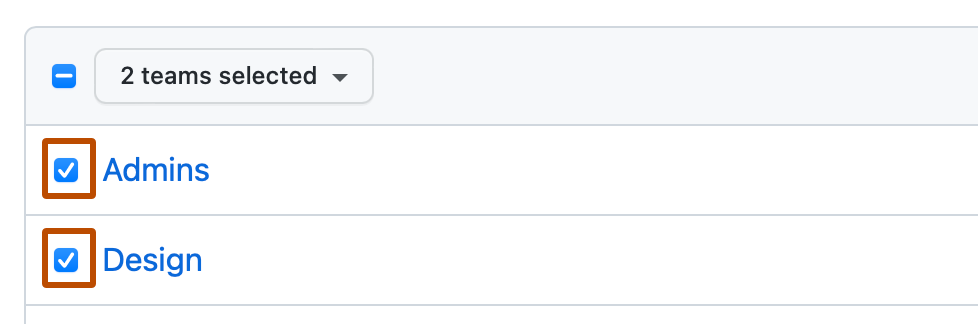
-
Above the list of teams, use the drop-down menu and click Change visibility.

-
Select a visibility, then click Change visibility.


