注意
将自有 API 密钥用于 GitHub Copilot 的功能处于 公开预览 阶段,可能会有所变动。
你可以将自己的 API 密钥引入到 GitHub Copilot 中,并使团队能够将首选的大型语言模型 (LLM) 提供程序与 副驾驶聊天、 Copilot 命令行界面(CLI)和 VS Code 结合使用。
支持来自以下提供程序的 API 密钥:
- Anthropic
- AWS Bedrock
- Google AI Studio
- Microsoft Foundry
- OpenAI
- OpenAI 兼容的提供程序
- xAI
还支持微调模型,但根据微调设置的不同,结果的功能和质量可能会有所不同。 在生产环境中使用模型之前,应仔细测试模型并仔细查看其输出。
Why bring your own API keys?
As an enterprise owner, you may have specific requirements for governance, data security, and compliance. Setting up your own API keys allows you to address:
- 治理和合规性: 选择符合组织策略和法规要求的 LLM 提供商。
- 成本管理: 与现有的付款方式、合同、信用额度或协商费率保持一致,避免使用超额。
- 可见性和控制: 管理团队可以使用的模型,还可以通过提供商的现有仪表板和计费来监视用量。
- 灵活性: 支持组织已使用的自定义或专用模型。
Adding your key to an enterprise account
重要
We highly recommend adhering to the principle of least privilege by assigning only the minimum necessary scopes to your API keys.
After you've added your key and selected one or more models, you and members of your organizations will be able to use them with 副驾驶聊天、 Copilot 命令行界面(CLI)和 VS Code. Your models will appear at the bottom of the model picker, under the enterprise name.
-
导航到您的企业。 例如,从 GitHub.com 上的 公司 页面。
-
在页面顶部,单击 AI 控件。
-
In the sidebar, click Copilot.
-
Click Configure allowed models.
-
单击“ 自定义模型 ”选项卡。
-
在 API 密钥列表上方,单击“ 添加 API 密钥”。
-
在“提供程序”下,选择要使用的 LLM 提供程序。
-
在“名称”下,键入此密钥的名称。 这将显示在模型选取器中。
-
在“API 密钥”下,键入或粘贴密钥。
-
根据所使用的提供程序,选择或添加模型。
-
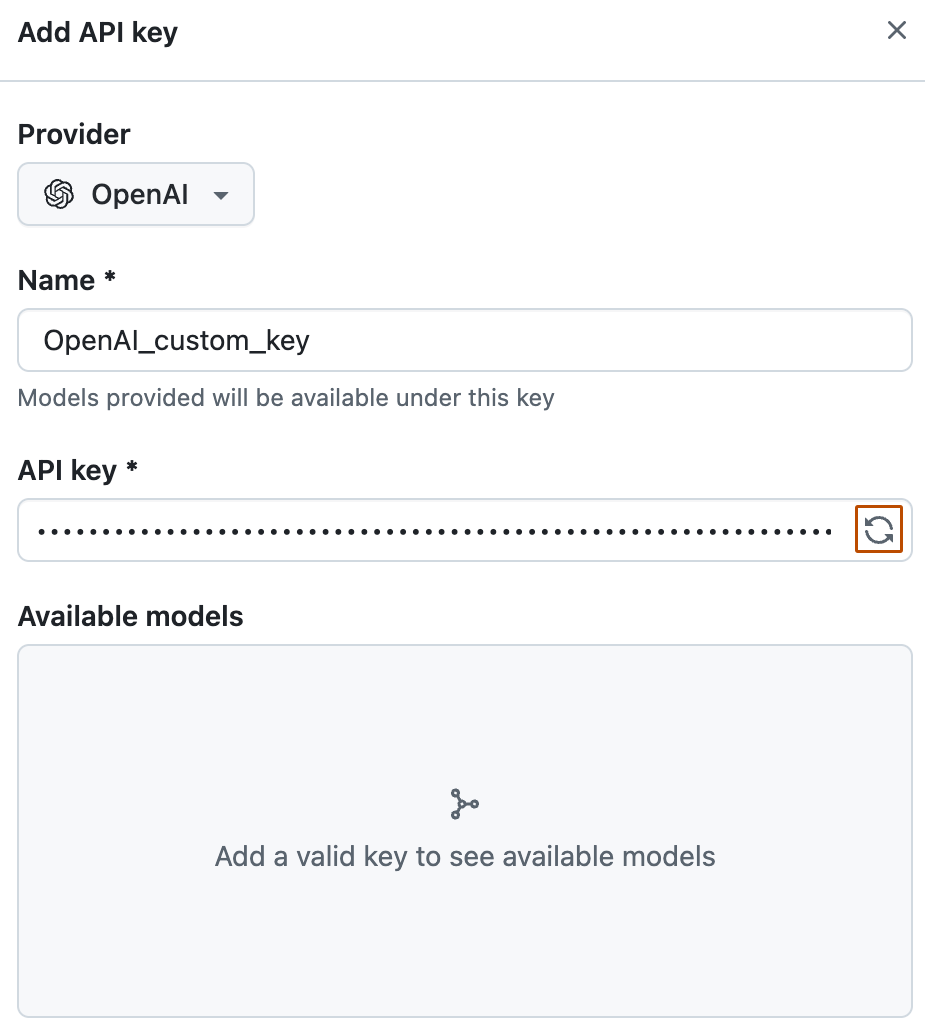
如果使用 OpenAI、Anthropic 或 xAI,请单击 API 密钥文本字段中的 以提取与密钥关联的模型。 接下来,在“可用模型”下,选择要使用的模型。
-
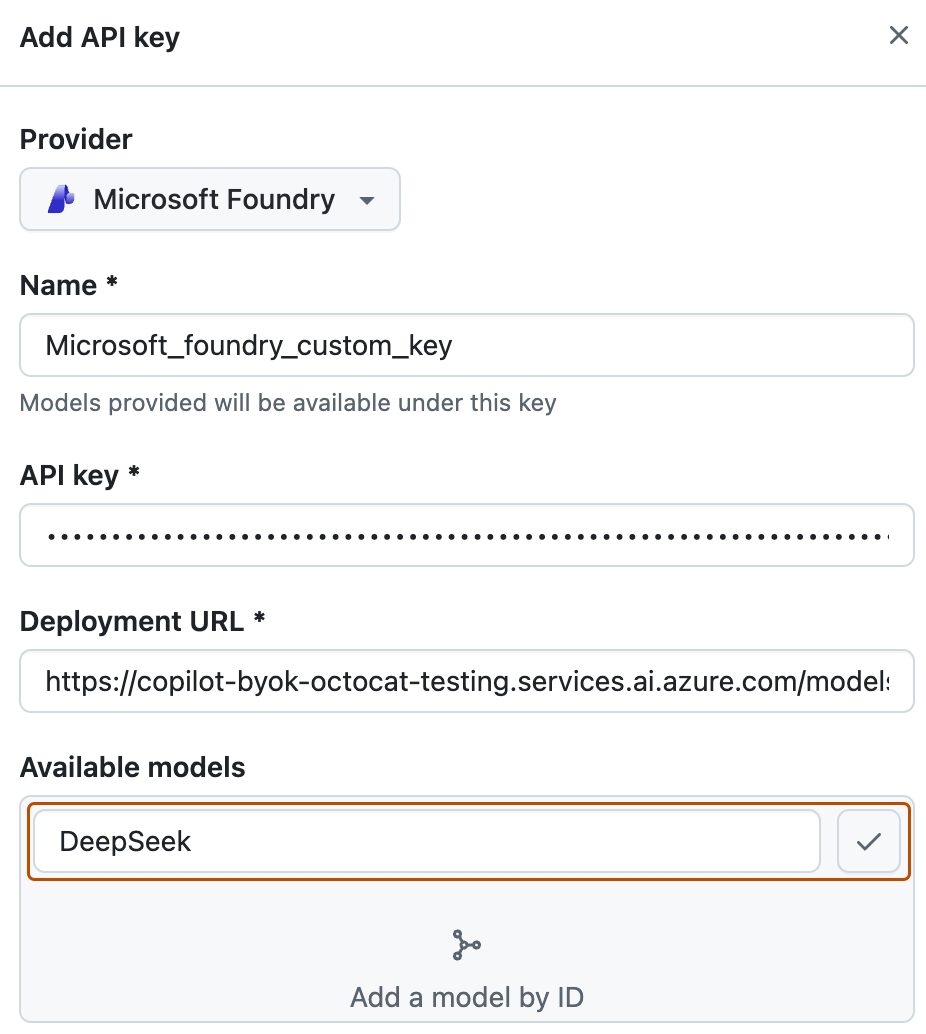
如果使用 Microsoft Foundry,请在“部署 URL”下的字段中键入部署 URL。 接下来,在“可用模型”下的字段中,键入模型 ID,然后单击 添加它。
如果模型具有不同的部署 URL,则无法将其添加到同一 API 密钥。 为每个部署 URL 创建单独的 API 密钥。
-
-
选择或添加要提供的模型后,单击“ 保存”。


Managing availability of custom models in your organizations
You can choose whether the models you have added are available to organizations in your enterprise account.
- 导航到您的企业。 例如,从 GitHub.com 上的 公司 页面。
- 在页面顶部,单击 AI 控件。
- In the sidebar, click Copilot.
- Click Configure allowed models.
- Click the Custom models tab.
- Above the list of API keys, click the Added models tab.
- Next to a model, click Configure. If any organizations already have access to the model, instead of "Configure", you will need to click All organizations or X organizations.
- In the modal that opens, click the Access tab.
注意
The model must be set to 'Enabled' before the "Access" tab will be available.
- Choose how the model should be made available to organizations:
- To make the model available to all organizations in your enterprise account, select Allow for all organizations.
- To only make the model available for specific organizations, select Choose per organization, and check or uncheck the organizations listed below.
- Click Save.
Further reading
- Enabling custom models for GitHub Copilot in your organization in our documentation for organizations.
- 关于 GitHub Copilot 聊天功能
- 支持 GitHub Copilot 策略的界面