참고
공개 미리 보기에 사용자 고유의 API 키를 가져오는 기능은 공개 미리 보기에 있으며 변경될 수 있습니다.
사용자 고유의 API 키를 GitHub Copilot에 가져오고, 팀이 원하는 대규모 언어 모델(LLM) 공급자를 공동 파일럿 채팅, 코파일럿 CLI 및 VS Code와 함께 사용할 수 있도록 할 수 있습니다.
다음 공급자의 API 키가 지원됩니다.
- 인위적
- AWS 베드록
- Google AI Studio
- Microsoft Foundry
- OpenAI
- OpenAI 호환 공급자
- xAI
미세 조정된 모델도 지원되지만, 미세 조정 설정에 따라 기능 및 결과 품질이 달라질 수 있습니다. 프로덕션 환경에서 사용하기 전에 모델을 테스트하고 출력을 신중하게 검토해야 합니다.
Why bring your own API keys?
As an enterprise owner, you may have specific requirements for governance, data security, and compliance. Setting up your own API keys allows you to address:
- 거버넌스 및 규정 준수: 조직의 정책 및 규정 요구 사항을 준수하는 LLM 공급자를 선택합니다.
- 비용 관리: 기존 결제 방법, 계약, 크레딧 또는 협상된 요금에 맞게 조정하고 사용량 초과를 방지합니다.
- 가시성 및 제어: 팀이 액세스할 수 있는 모델을 관리하고 공급자의 기존 대시보드 및 청구를 통해 사용량을 모니터링합니다.
- 유연성: 조직에서 이미 사용하고 있는 사용자 지정 또는 특수 모델을 지원합니다.
Adding your key to an enterprise account
중요
We highly recommend adhering to the principle of least privilege by assigning only the minimum necessary scopes to your API keys.
After you've added your key and selected one or more models, you and members of your organizations will be able to use them with 공동 파일럿 채팅, 코파일럿 CLI 및 VS Code. Your models will appear at the bottom of the model picker, under the enterprise name.
-
귀하의 기업으로 이동하세요. 예를 들어 GitHub.com의 Enterprises 페이지에서.
-
페이지 맨 위에서 AI 컨트롤을 클릭합니다.
-
In the sidebar, click Copilot.
-
Click Configure allowed models.
-
사용자 지정 모델 탭을 클릭합니다.
-
API 키 목록 위에서 API 키 추가를 클릭합니다.
-
"공급자"에서 사용하려는 LLM 공급자를 선택합니다.
-
"이름" 아래에 이 키의 이름을 입력합니다. 모델 선택기에서 표시됩니다.
-
"API 키"에서 키를 입력하거나 붙여넣습니다.
-
사용 중인 공급자에 따라 모델을 선택하거나 추가합니다.
-
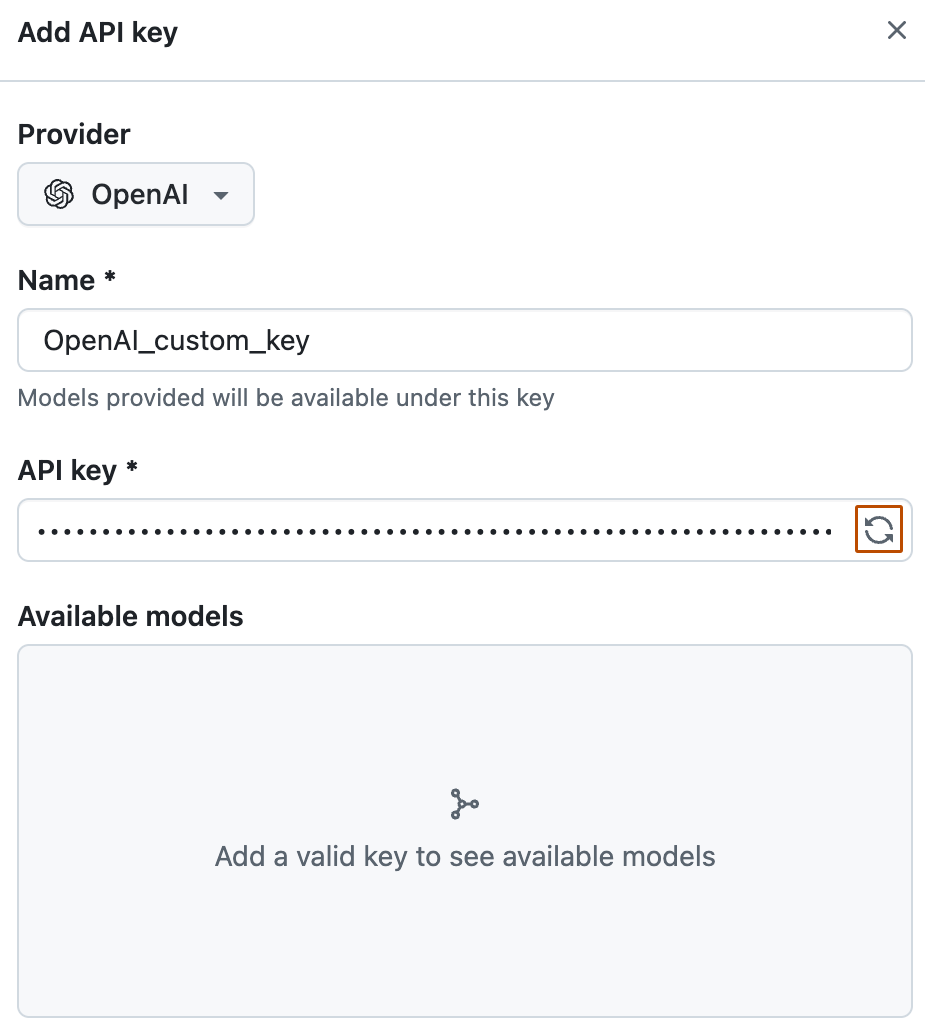
OpenAI, Anthropic 또는 xAI를 사용하는 경우 API 키 텍스트 필드에서 을 클릭하여 키와 연결된 모델을 가져옵니다. 다음으로, "사용 가능한 모델"에서 사용하려는 모델을 선택합니다.
-
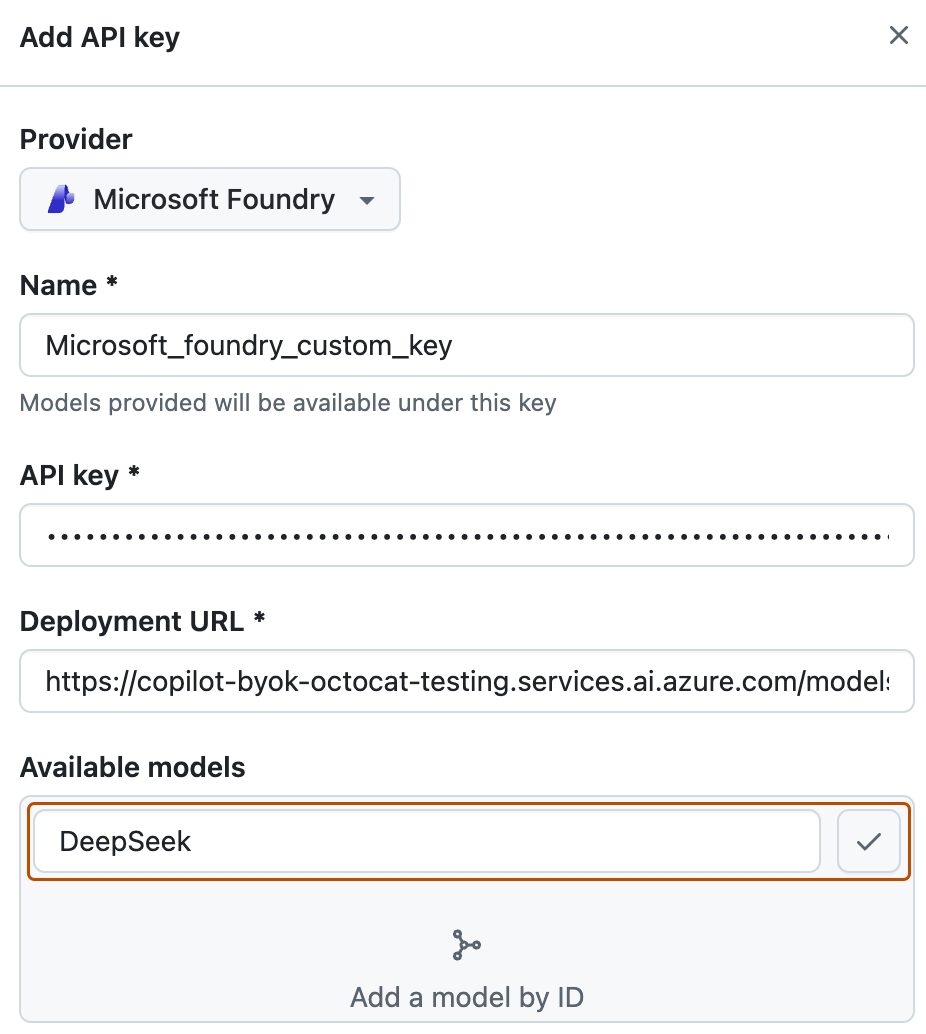
Microsoft Foundry를 사용하는 경우 "배포 URL" 아래의 필드에 배포 URL을 입력합니다. 그런 다음, "사용 가능한 모델" 아래의 필드에 모델 ID를 입력하고 를 클릭하여 추가합니다.
모델에 다른 배포 URL이 있는 경우 동일한 API 키에 추가할 수 없습니다. 각 배포 URL에 대해 별도의 API 키를 만듭니다.
-
-
사용할 모델을 선택하거나 추가한 후 [저장]을 클릭합니다.


Managing availability of custom models in your organizations
You can choose whether the models you have added are available to organizations in your enterprise account.
- 귀하의 기업으로 이동하세요. 예를 들어 GitHub.com의 Enterprises 페이지에서.
- 페이지 맨 위에서 AI 컨트롤을 클릭합니다.
- In the sidebar, click Copilot.
- Click Configure allowed models.
- Click the Custom models tab.
- Above the list of API keys, click the Added models tab.
- Next to a model, click Configure. If any organizations already have access to the model, instead of "Configure", you will need to click All organizations or X organizations.
- In the modal that opens, click the Access tab.
참고
The model must be set to 'Enabled' before the "Access" tab will be available.
- Choose how the model should be made available to organizations:
- To make the model available to all organizations in your enterprise account, select Allow for all organizations.
- To only make the model available for specific organizations, select Choose per organization, and check or uncheck the organizations listed below.
- Click Save.
Further reading
- Enabling custom models for GitHub Copilot in your organization in our documentation for organizations.
- GitHub 코필로트 채팅 정보
- GitHub Copilot 정책에 지원되는 표면